
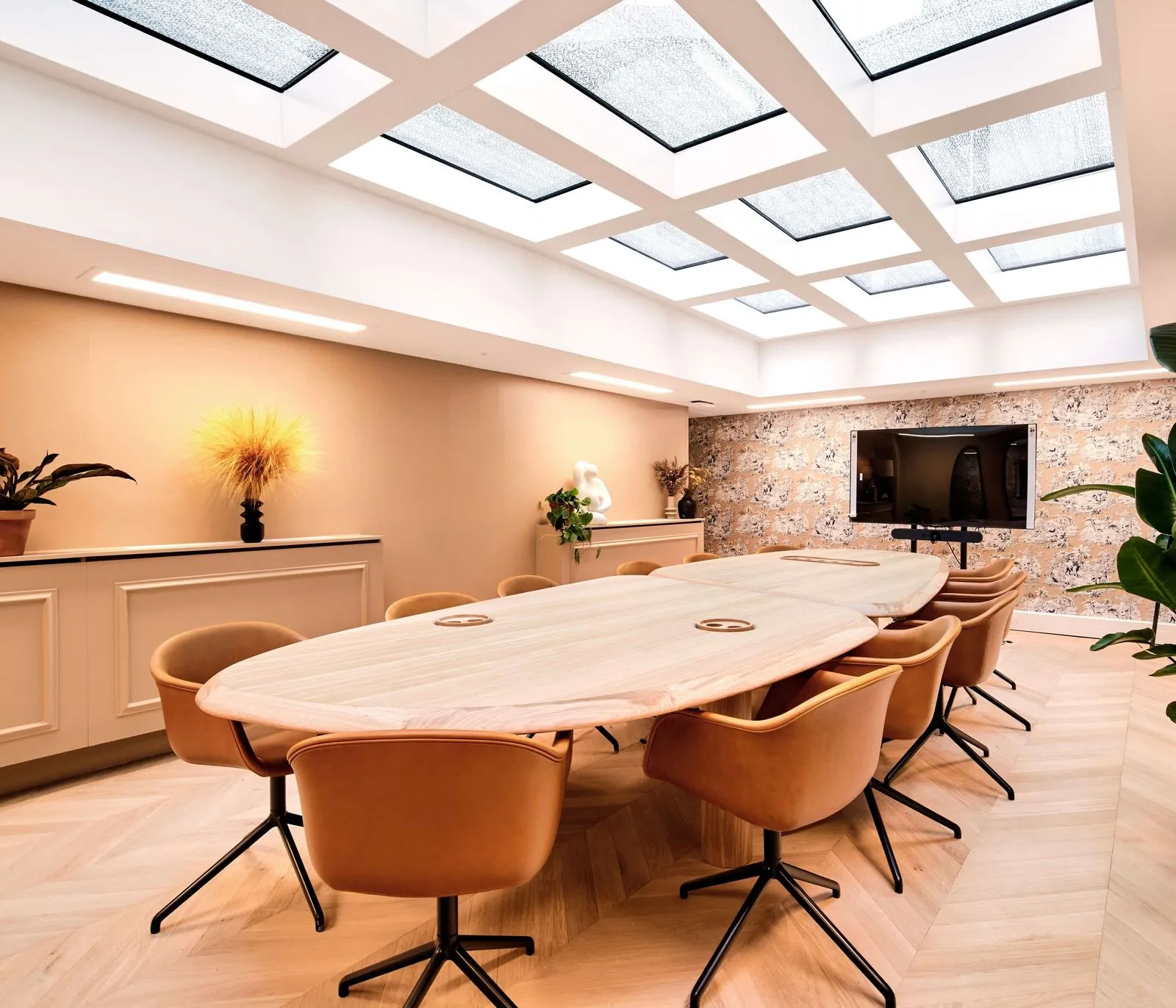
Choosing a meeting room screen takes more than looking at the display itself: size suited to the room’s capacity, touchscreen or simple display, connectivity and compatibility with the video conferencing tools the team already uses. This guide covers the concrete criteria for equipping a meeting room, or for choosing an already equipped room to rent.
What screen size fits each meeting room capacity
Screen size is calculated first from viewing distance, not from the room’s floor area. The most common rule allows roughly one-sixth of the distance between the screen and the farthest seat for the diagonal, in inches.
| Room capacity | Recommended diagonal | Maximum reading distance |
|---|---|---|
| 2 to 4 people | 43 to 55 inches | 3 to 4 meters |
| 4 to 6 people | 55 to 65 inches | 4 to 5.5 meters |
| 8 to 12 people | 75 to 85 inches | 6 to 7.5 meters |
Benchmarks for displaying text and shared documents, excluding conference rooms with multiple screens.
A screen too small for the room forces participants at the back to lean forward to read a table or a presentation, which hurts the quality of the meeting. An oversized screen in a small room, on the other hand, tires the eyes of the front row. For the rest of the room’s fit-out, including acoustics and lighting around the screen, a dedicated guide on meeting room design covers each criterion.
Touchscreen or simple display: which to choose
Two main families of screens equip meeting rooms today. A simple display screen shows content shared from a computer or a video conferencing unit, with no direct interaction. It suits the vast majority of meetings, which are limited to following a presentation or a video call.
An interactive touchscreen adds the ability to annotate a displayed document, sketch a diagram or use a shared digital whiteboard with remote participants. This feature proves useful for collaborative workshops, brainstorming or training sessions, but is rarely necessary for a standard team meeting. Touchscreens cost noticeably more upfront and require at least some familiarization from the team.
The choice therefore depends on the room’s main use rather than on a trend: a room mostly used for short team check-ins does not need a touchscreen, while a room dedicated to design workshops benefits fully from one. This principle echoes the one developed for a modern meeting room as a whole: equipment is chosen based on actual use, not on the most complete model on the market.
What connectivity and wireless screen sharing to plan for
The connectivity of a meeting room screen shapes how simple it is to use day to day. An HDMI input remains essential for plugging in a laptop directly, alongside a video conferencing unit connected over USB.
Wireless screen sharing is increasingly becoming the standard, to avoid a tangle of cables and adapters cluttering the table. Common solutions let each participant connect their laptop within seconds from an app, with no need for IT support at every meeting. This connectivity also makes it easier for external visitors to use the room, since they don’t have to hunt for the right cable among several adapters.
One point often overlooked: the position of the outlets and the connection unit. They need to stay accessible directly from the table, to avoid trailing extension cords on the floor, a point covered more broadly in the general layout rules for a meeting room.
Which video conferencing tools should the screen be compatible with
Software compatibility avoids adding an extra unit at every meeting. Most recent screens work natively, or through an app, with the three most common solutions in business: Microsoft Teams, Google Meet and Zoom.
Some models run an operating system directly, most often Android, letting the video conferencing app launch without a connected computer. Others simply display what a PC or a dedicated unit sends them over HDMI or USB, with the software intelligence staying on the computer’s side. Both approaches work well, but the first simplifies use for a room with high turnover, while the second keeps the screen simpler to replace if the company ever switches software.
Before any purchase, checking that the screen is compatible with the tool already deployed in the company avoids discovering an incompatibility mid-meeting, a microphone or camera that doesn’t show up in the device list, or a third-party unit to add for lack of software certification.
Renting an already equipped meeting room instead of investing
Equipping a meeting room in-house is an investment that rarely stops at the screen alone: camera, microphone, furniture and installation add up, not counting upkeep and replacement as technology standards evolve. For occasional, irregular use, or for a growing team, renting an already equipped room in a business centre or a coworking space avoids this investment.
Morning offers meeting rooms already equipped with a screen, a camera and a video conferencing solution, bookable by the hour or the day in several addresses across the Paris region, with no maintenance or equipment renewal to manage for the client company. This flexibility particularly suits teams that occasionally host clients or hold meetings across several neighborhoods depending on their schedule. To compare rates across different networks, our comparison of coworking meeting rooms in Paris details the offers available.
For a fixed team using the same room every day, investing in a screen and its equipment usually remains more cost-effective in the medium term, provided the size and connectivity are chosen correctly from the start rather than upgraded piece by piece.